Screenshots on macOS are great and one of those features I use daily in my workflows. One issue I run into from time to time can be the sheer clutter that can be generated during intense coding sessions, so the other day I spent some time writing a simple helper to help classify and organize screenshots using AI. The plan:
- Watch desktop for new files matching
"Screenshot(.*).png" - Prompt Claude to generate a descriptive name for the file
- Re-name the file locally and handle edge cases
This document goes over two different approaches to solving this problem using native solutions on MacOS:
- Option A: Bash script w/ Automator
- Option B: Swift program w/ launchd
I would recommend using Option B as I found it more reliable and easier to setup as a developer, but both are listed below.
Source Code: https://github.com/asleepace/ai-rename-screenshot
Prerequisites
To get started you just need to be on MacOS and have an api key for Anthropic. This article uses Claude to analyze and annotate images, but you could swap out this logic with whatever provider you prefer using. The first step for both options is to store this api key in your Keychian Access:
# run the following in your terminal to store your api key in your keychain:
security add-generic-password -a "$USER" -s "CLAUDE_API_KEY" -w "sk-ant-..."
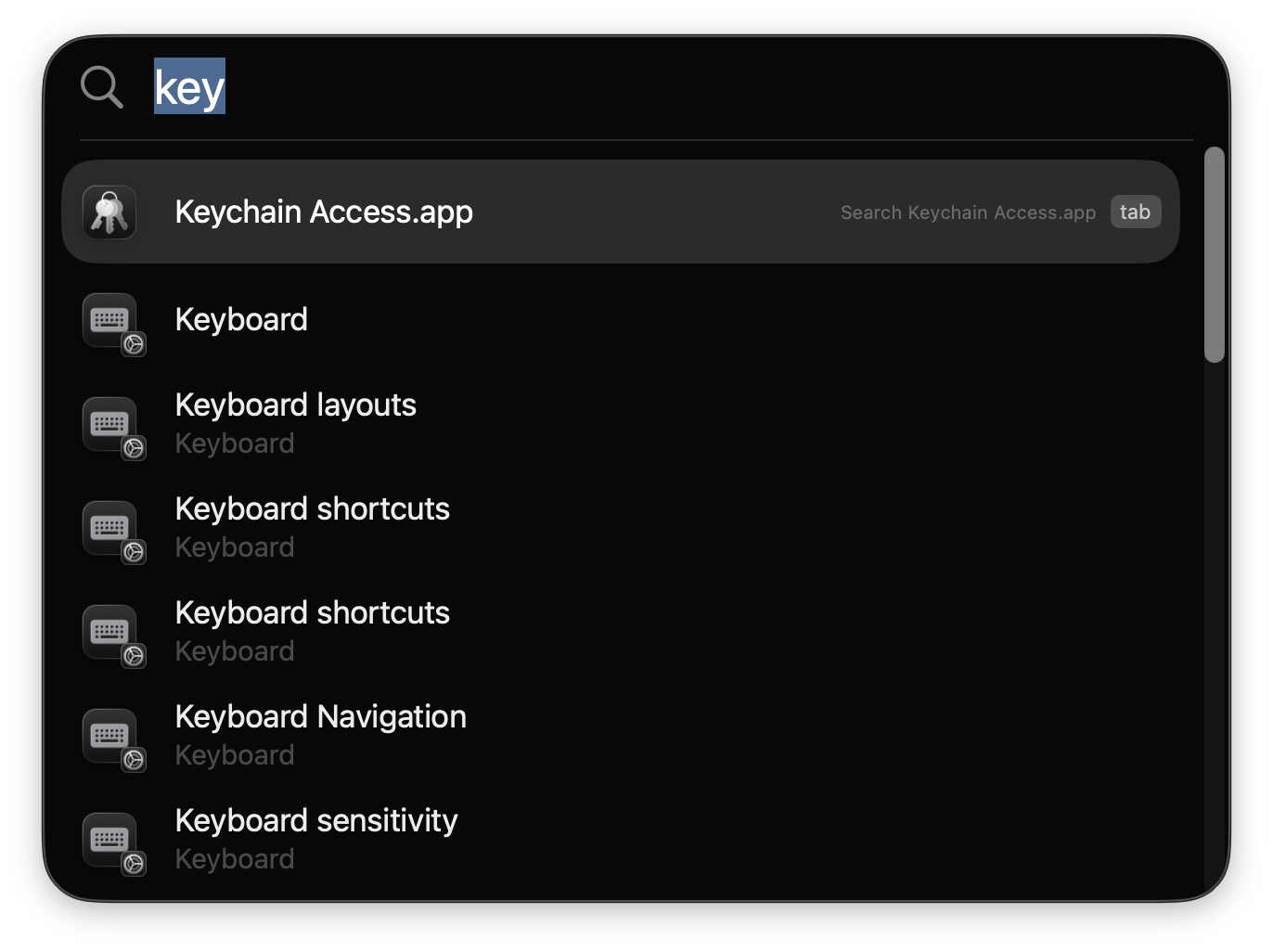
Verify this worked by opening the Keychian Access app by pressing Command+Spacebar and entering "Keychian Access".
It may ask you if you want to go to Passwords or Keychian Access when first opened, if so choose Keychain Access.
Then you can search for the newly created key under Login Items by entering "CLAUDE_API_KEY" in the search bar:
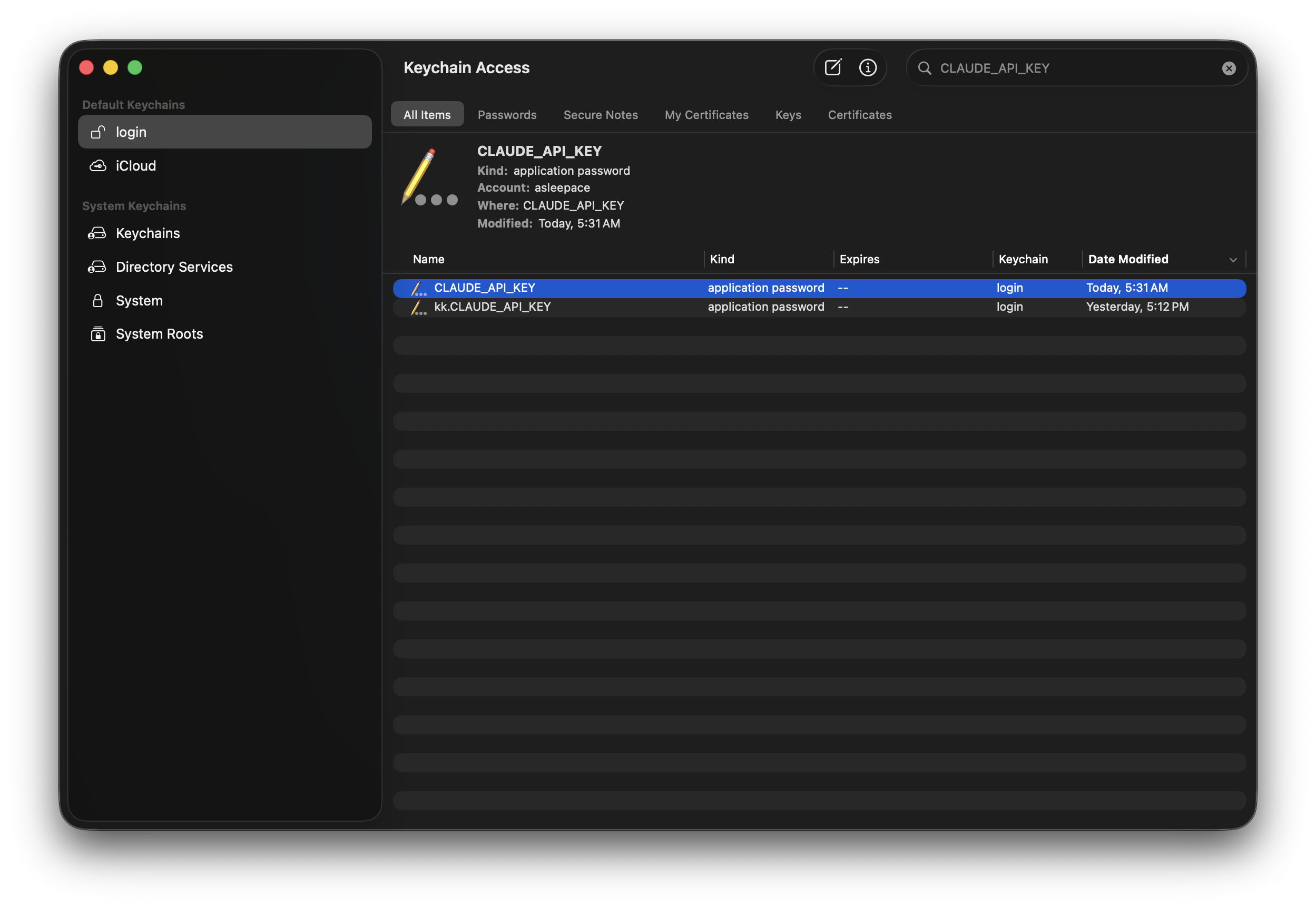
The reason we are storing in the keychain is to prevent hardcoding our api keys in the actual code and is overall just a best practice. You can however skip this step and just include manually in the code if that’s your preference.
Also, a few other specifics about my particular environment just for reference:
- Device: Macbook Pro Apple M1 Max
- MacOS: 26.3 (25D125)
- Swift: 6.2.4
Option A - Bash script w/ Automator
This option is a bit easier to setup and get working but requires using Apple’s Automator application to watch for newly created files
on the desktop. This application is installed by default on MacOS and can be found by searching for "Automator" in Spotlight search.
What is Automator?
Automator is a macOS app that lets you build automated workflows without code by chaining together pre-built actions for things like “Get Finder Items”, “Run Shell Script”, “Rename Files”, etc.
It supports a few workflow types:
- Folder Action — triggers when files are added to a folder (what we were using)
- Application — runs when you open it
- Quick Action — appears in right-click menus
- Calendar Alarm — runs on a schedule
It’s essentially Apple’s no-code automation tool, similar to Shortcuts but older and more desktop-focused.
Setting up the Automation
- Open Automator → New Document → Folder Action
- Set “Folder Action receives files and folders added to:” →
Desktop - Add action: Run Shell Script
- Set “Pass input:” →
as arguments
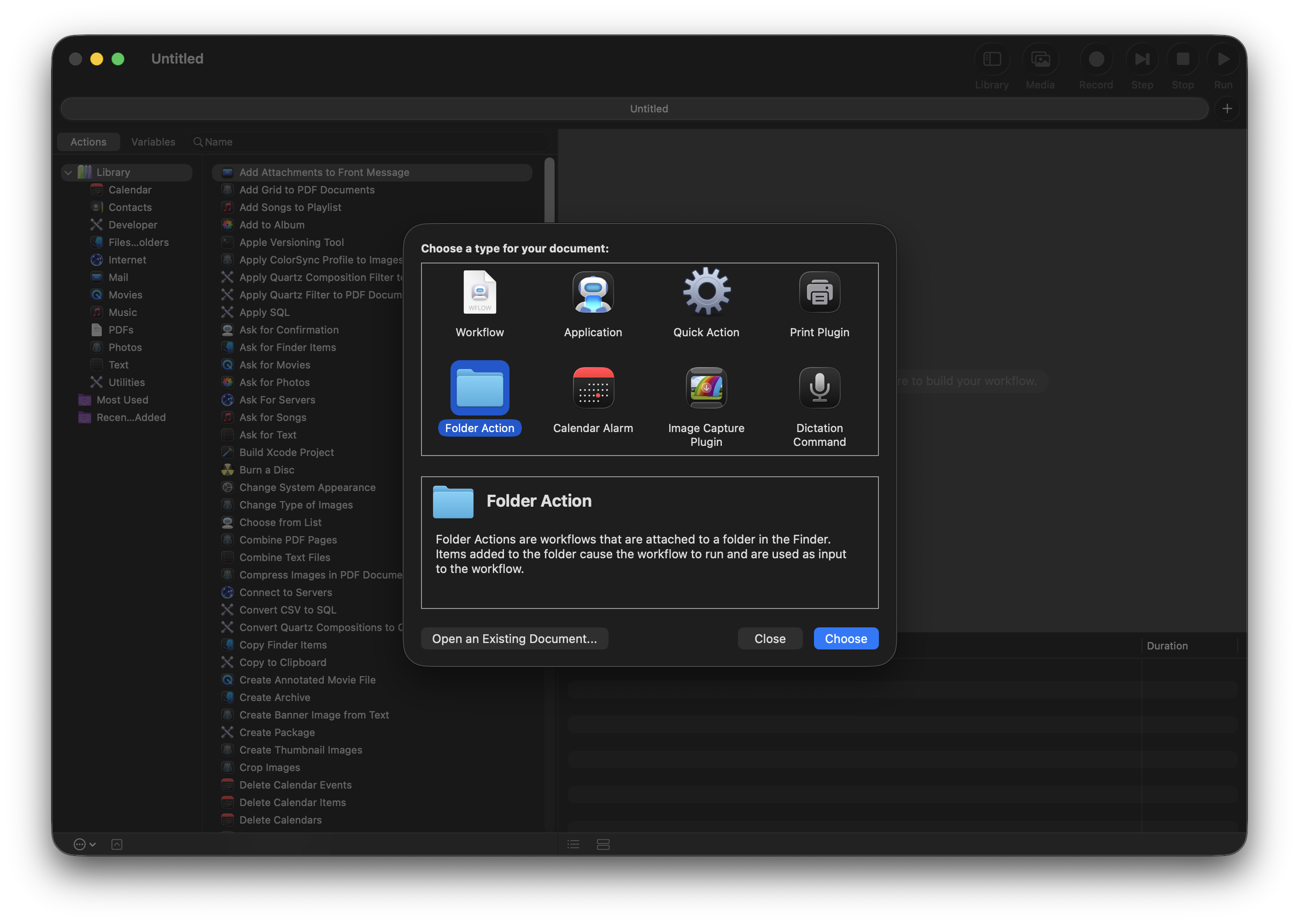
To make sure you have everything setup correctly and working, start by pasting this Bash script and then saving with Command+S and naming something like “Ai Rename Screenshots”.
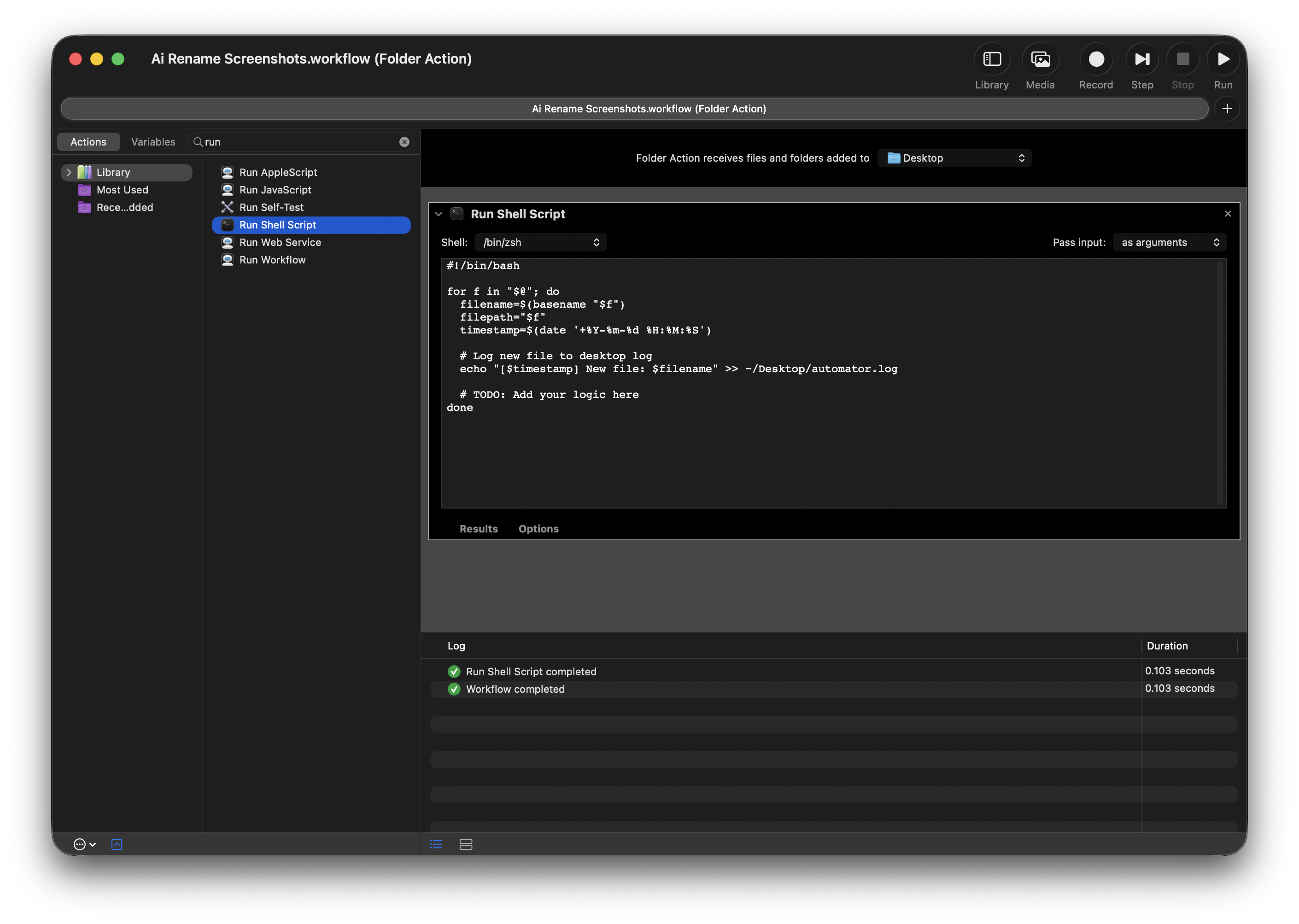
This script is just used to verify the automation is setup and receiving files:
#!/bin/bash

# Iterate over newly created files:
for f in "$@"; do
  filename=$(basename "$f")
  filepath="$f"
  timestamp=$(date '+%Y-%m-%d %H:%M:%S')

  # Log new file to desktop log
  echo "[$timestamp] New file: $filename" >> ~/Desktop/automator.log

done
Once ready take a screenshot with Command+Shift+4 and make sure you see the log file generated on your desktop. The contents should looks something like:
[2026-04-16 06:18:32] New file: Screenshot 2026-04-16 at 9.08.32 AM.png
[2026-04-16 06:18:38] New file: automator.log
If the log doesn’t appear like this make sure that your screenshots are being saved to the desktop and that your automation has "Pass input: as arguments" set.
Once everything looks good and is ready to go you can replace the test script above with this full script:
#!/bin/bash

# Load CLAUDE_API_KEY from keychain
CLAUDE_API_KEY=$(security find-generic-password -s "CLAUDE_API_KEY" -w 2>/dev/null)

# Output log destination:
LOG="$HOME/Library/Logs/automator-screenshots.log"

# Verify api key is set
if [[ -z "$CLAUDE_API_KEY" ]]; then
  echo "[$(date '+%Y-%m-%d %H:%M:%S')] ERROR: No CLAUDE_API_KEY API key found in keychain" >> "$LOG"
  exit 1
fi

# Iterate over newly added files
for f in "$@"; do
  filename=$(basename "$f")

  # Filter: only process Screenshot*.png files
  if [[ ! "$filename" == Screenshot*.png ]]; then
    continue
  fi

  echo "[$(date '+%Y-%m-%d %H:%M:%S')] Processing: $filename" >> "$LOG"

  # 1. Compress using sips (built-in macOS)
  compressed="/tmp/compressed_$filename"
  sips --resampleHeightWidthMax 1280 "$f" --out "$compressed" &>/dev/null

  # 2. Base64 encode
  b64=$(base64 -i "$compressed")

  # 3. Send to Claude for a descriptive name
  response=$(curl -s https://api.anthropic.com/v1/messages \
    -H "x-api-key: $CLAUDE_API_KEY" \
    -H "anthropic-version: 2023-06-01" \
    -H "content-type: application/json" \
    -d "{
      \"model\": \"claude-haiku-4-5\",
      \"max_tokens\": 64,
      \"messages\": [{
        \"role\": \"user\",
        \"content\": [
          {
            \"type\": \"image\",
            \"source\": {
              \"type\": \"base64\",
              \"media_type\": \"image/png\",
              \"data\": \"$b64\"
            }
          },
          {
            \"type\": \"text\",
            \"text\": \"Generate a short, descriptive kebab-case filename (no extension, max 5 words) for this screenshot. Reply with ONLY the filename, nothing else.\"
          }
        ]
      }]
    }")

  # 4. Parse name and rename
  new_name=$(echo "$response" | grep -o '"text":"[^"]*"' | head -1 | sed 's/"text":"//;s/"//')

  if [[ -n "$new_name" ]]; then
    dir=$(dirname "$f")
    new_path="$dir/${new_name}.png"
    mv "$f" "$new_path"
    echo "[$(date '+%Y-%m-%d %H:%M:%S')] Renamed to: ${new_name}.png" >> "$LOG"
  else
    echo "[$(date '+%Y-%m-%d %H:%M:%S')] Failed to get name for: $filename" >> "$LOG"
  fi

  rm -f "$compressed"
done
This Bash script is called by Automator when new files are added to the desktop and does the following:
- Uses sips (zero dependencies, built into macOS) for compression
- Downsizes to max 1280px to reduce API payload
- Claude is prompted to return only a kebab-case name, e.g.
dark-mode-settings-panel.png - Renames the original file in-place on the Desktop
Make sure that you have added the "CLAUDE_API_KEY" keychain item we set in prerequisites! You could also
remove this line CLAUDE_API_KEY=$(security find-generic-password -s "CLAUDE_API_KEY" -w 2>/dev/null) if
you have this already set in your ~/.zshrc or you can replace with a hardcoded value as well (but not recommended).
To view logs from this script you can run the following in your terminal:
tail -f ~/Library/Logs/automator-screenshots.logNOTE: If you run into any issues see the Troubleshooting section below.
Now take a screenshot and watch it be renamed automatically!
Option B - Swift program w/ launchd
While the above approach with Automator and Bash works, it felt a bit cumbersome and hard to debug. Also handling more complex edge cases with Bash wasn’t ideal for me, so I reached for something a bit more programmatic.
The solution was a standalone Swift file which could be compiled to a binary and registered with launchd to run automatically
in the background when the computer is started.
What is launchd?
launchd is macOS’s system and service manager and is the first process that runs when macOS boots (PID 1). It is responsible for starting
and managing all other processes.
It replaces older Unix tools like cron and init. You interact with it via launchctl and define services using .plist files stored in a few locations:
~/Library/LaunchAgents/— runs as your user on login (what we’re using)/Library/LaunchAgents/— runs as your user for all users/Library/LaunchDaemons/— runs as root at boot, no user session needed
It handles things like auto-restart (KeepAlive), logging, run-at-load, and watching paths.
https://support.apple.com/guide/terminal/script-management-with-launchd
Creating a Swift program
NOTE: If you also setup the automator action in the previous section, you will need to disable this first!
To get started create a new folder somewhere called swift-scripts which will be used to contain our Swift
code, output binary and .plist file.
# create a new folder for the script
mkdir ~/swift-scripts
cd ~/swift-scripts

# create an empty Swift file
touch ai-rename-screenshot.swift

# open the file in your editor
open ai-rename-screenshot.swift
Then go ahead and paste the following code into ai-rename-screenshot.swift
//
//  @file ai-rename-screenshot.swift
//  @description automatically rename screenshots with ai.
//  @created on April 15th, 2026
//  @author asleepace
//
import AppKit
import CoreServices
import Foundation

// MARK: - Configuration (editable)

let anthropicModel: String = "claude-haiku-4-5"
let folderName: String = "Desktop"
let maxProcessed: Int = 50
let delayInSeconds: UInt64 = 1
let systemPrompt: String = """
Create descriptive title for screenshot in 2-6 words, lowercase, hyphen-separated. Return only the filename with no extension. Example: safari-github-pull-request
"""

func isScreenshot(_ filename: String) -> Bool {
    filename.hasPrefix("Screenshot") && filename.hasSuffix(".png")
}

// MARK: - Internal State

var processed = Set<String>()

func hasNotProcessed(_ path: String) -> Bool {
    if processed.contains(path) { return false }
    processed.insert(path)
    if processed.count > maxProcessed {
        processed.removeFirst()
    }
    return true
}

// MARK: - Keychain

func getSecret(_ name: String) -> String? {
    let task = Process()
    task.executableURL = URL(fileURLWithPath: "/usr/bin/security")
    task.arguments = ["find-generic-password", "-a", NSUserName(), "-s", "\(name)", "-w"]
    let pipe = Pipe()
    task.standardOutput = pipe
    task.standardError = Pipe()
    try? task.run()
    task.waitUntilExit()
    let data = pipe.fileHandleForReading.readDataToEndOfFile()
    return String(data: data, encoding: .utf8)?.trimmingCharacters(in: .whitespacesAndNewlines)
}

// MARK: - Image Compression

func compressImage(_ path: String, maxDimension: CGFloat = 1024, quality: CGFloat = 0.7) -> Data? {
    guard let image = NSImage(contentsOfFile: path) else { return nil }

    let originalSize = image.size
    let scale = min(maxDimension / originalSize.width, maxDimension / originalSize.height, 1.0)
    let newSize = NSSize(width: originalSize.width * scale, height: originalSize.height * scale)

    let resized = NSImage(size: newSize)
    resized.lockFocus()
    image.draw(in: NSRect(origin: .zero, size: newSize))
    resized.unlockFocus()

    guard let tiff = resized.tiffRepresentation,
          let bitmap = NSBitmapImageRep(data: tiff),
          let jpeg = bitmap.representation(using: .jpeg, properties: [.compressionFactor: quality])
    else { return nil }

    return jpeg
}

// MARK: - Claude API

func renameScreenshot(_ path: String) async {
    // add 0.5s delay before compressing image to let system store file
    try? await Task.sleep(nanoseconds: delayInSeconds * 1_000_000_000)

    guard let apiKey = getSecret("CLAUDE_API_KEY"), !apiKey.isEmpty else {
        print("❌ CLAUDE_API_KEY not found in keychain")
        return
    }

    guard let imageData = compressImage(path) else {
        print("❌ Could not compress image: \(path)")
        return
    }

    print("📦 Compressed to \(imageData.count / 1024)KB")

    let base64 = imageData.base64EncodedString()
    let dir = URL(fileURLWithPath: path).deletingLastPathComponent().path

    let payload: [String: Any] = [
        "model": anthropicModel,
        "max_tokens": 64,
        "messages": [[
            "role": "user",
            "content": [
                [
                    "type": "image",
                    "source": [
                        "type": "base64",
                        "media_type": "image/jpeg",
                        "data": base64
                    ]
                ],
                [
                    "type": "text",
                    "text": "\(systemPrompt)"
                ]
            ]
        ]]
    ]

    guard let body = try? JSONSerialization.data(withJSONObject: payload) else {
        print("❌ Failed to serialize payload")
        return
    }

    var request = URLRequest(url: URL(string: "https://api.anthropic.com/v1/messages")!)
    request.httpMethod = "POST"
    request.httpBody = body
    request.setValue(apiKey, forHTTPHeaderField: "x-api-key")
    request.setValue("2023-06-01", forHTTPHeaderField: "anthropic-version")
    request.setValue("application/json", forHTTPHeaderField: "content-type")

    do {
        let (data, _) = try await URLSession.shared.data(for: request)
        guard
            let json = try? JSONSerialization.jsonObject(with: data) as? [String: Any],
            let content = (json["content"] as? [[String: Any]])?.first,
            let text = content["text"] as? String
        else {
            print("❌ Failed to parse response")
            return
        }

        let newName = text
            .lowercased()
            .components(separatedBy: CharacterSet.alphanumerics.union(CharacterSet(charactersIn: "-")).inverted)
            .joined(separator: "-")
            .trimmingCharacters(in: CharacterSet(charactersIn: "-"))

        guard !newName.isEmpty else {
            print("❌ Empty filename returned")
            return
        }

        var newPath = "\(dir)/\(newName).png"

        // prevent naming collisions:
        if FileManager.default.fileExists(atPath: newPath) {
            newPath = "\(dir)/\(newName)-\(Int(Date().timeIntervalSince1970)).png"
        }

        // save output file:
        try FileManager.default.moveItem(atPath: path, toPath: newPath)
        print("✓ Renamed to: \(newName).png")
    } catch {
        print("❌ Error: \(error)")
    }
}

// MARK: - FSEvents

let desktopURL = FileManager.default.homeDirectoryForCurrentUser
    .appendingPathComponent(folderName)

let queue = DispatchQueue(label: "com.asleepace.ai-screenshot-analyzer")

// NOTE: This is the callback that is triggered each time the Desktop is updated.
let callback: FSEventStreamCallback = { _, _, numEvents, eventPaths, eventFlags, _ in
    let paths = Unmanaged<CFArray>.fromOpaque(eventPaths).takeUnretainedValue() as! [String]
    let flags = UnsafeBufferPointer(start: eventFlags, count: numEvents)

    for (path, flag) in zip(paths, flags) {
        // extract filename from path
        let filename = URL(fileURLWithPath: path).lastPathComponent

        print("Event: \(filename) flags: \(flag)")  // see what's coming in

        // only trigger for newly created files
        guard flag & UInt32(kFSEventStreamEventFlagItemCreated) != 0 else { continue }

        // Note sometimes the file is saved as a tmp file, so handle those differently:
        if filename.hasPrefix(".") && isScreenshot(String(filename.dropFirst())) {
            let finalFilename = String(filename.dropFirst())
            let finalPath = URL(fileURLWithPath: path)
                .deletingLastPathComponent()
                .appendingPathComponent(finalFilename)
                .path
            guard hasNotProcessed(finalPath) else { continue }
            print("📸 Detected incoming screenshot: \(filename)")
            Task {
                try? await Task.sleep(nanoseconds: delayInSeconds * 1_000_000_000)
                await renameScreenshot(finalPath)
            }
            continue
        }

        // Pattern match file here:
        guard isScreenshot(filename) else { continue }
        guard hasNotProcessed(path) else { continue }

        print("📸 New screenshot: \(filename)")
        Task { await renameScreenshot(path) }
    }
}

var context = FSEventStreamContext()
let stream = FSEventStreamCreate(
    nil, callback, &context,
    [desktopURL.path] as CFArray,
    FSEventStreamEventId(kFSEventStreamEventIdSinceNow),
    0.5,
    FSEventStreamCreateFlags(kFSEventStreamCreateFlagFileEvents | kFSEventStreamCreateFlagUseCFTypes)
)!

FSEventStreamSetDispatchQueue(stream, queue)
FSEventStreamStart(stream)

print("👀 Watching for screenshots on Desktop...")
dispatchMain()
Note you can edit the following settings in your file based on your preferences:
let anthropicModel: String = "claude-haiku-4-5"
let folderName: String = "Desktop"
let maxProcessed: Int = 50
let delayInSeconds: UInt64 = 1
let systemPrompt: String = """
Create descriptive title for screenshot in 2-6 words, lowercase, hyphen-separated. Return only the filename with no extension. Example: safari-github-pull-request
"""

func isScreenshot(_ filename: String) -> Bool {
    filename.hasPrefix("Screenshot") && filename.hasSuffix(".png")
}NOTE: Make sure to recompile the binary and unload then reload the process if editing.
Then when you are ready to test you can run the following in your terminal:
# run in same folder file is saved:
xcrun swiftc ai-rename-screenshot.swift -o ai-rename-screenshot

# verify new program was generated
ls

# this will output a binary you can run by:
./ai-rename-screenshot
Then take a screenshot while it’s running and your output should look like the following now:
➜ swift-scripts $ xcrun swiftc ai-rename-screenshot.swift -o ai-rename-screenshot
➜ swift-scripts $ ls
ai-rename-screenshot       ai-rename-screenshot.swift
➜ swift-scripts $ ./ai-rename-screenshot
👀 Watching for screenshots on Desktop...
Event: .Screenshot 2026-04-16 at 7.05.51 AM.png flags: 110848
📸 Detected incoming screenshot: .Screenshot 2026-04-16 at 7.05.51 AM.png
Event: .Screenshot 2026-04-16 at 7.05.51 AM.png flags: 112896
Event: Screenshot 2026-04-16 at 7.05.51 AM.png flags: 100352
Event: Screenshot 2026-04-16 at 7.05.51 AM.png flags: 98304
Event: Screenshot 2026-04-16 at 7.05.51 AM.png flags: 4260864
📦 Compressed to 172KB
✓ Renamed to: swift-script-screenshot-watcher.png
Event: Desktop flags: 132096
Event: Screenshot 2026-04-16 at 7.05.51 AM.png flags: 98304
Event: Screenshot 2026-04-16 at 7.05.51 AM.png flags: 67584
Event: swift-script-screenshot-watcher.png flags: 100352
Event: swift-script-screenshot-watcher.png flags: 98304
Event: swift-script-screenshot-watcher.png flags: 98304
Add to launchd
The next step is to add this binary to launchd so that it runs when the computer is started, to do so
let’s create a new .plist file in the same directory as our binary:
# create .plist file in same directory:
cat > ~/Library/LaunchAgents/com.asleepace.ai-rename-screenshot.plist << EOF
<?xml version="1.0" encoding="UTF-8"?>
<!DOCTYPE plist PUBLIC "-//Apple//DTD PLIST 1.0//EN" "http://www.apple.com/DTDs/PropertyList-1.0.dtd">
<plist version="1.0">
<dict>
    <key>Label</key>
    <string>com.asleepace.ai-rename-screenshot</string>
    <key>ProgramArguments</key>
    <array>
        <string>$HOME/swift-scripts/ai-rename-screenshot</string>
    </array>
    <key>RunAtLoad</key>
    <true/>
    <key>KeepAlive</key>
    <true/>
    <key>StandardOutPath</key>
    <string>/tmp/ai-rename-screenshot.log</string>
    <key>StandardErrorPath</key>
    <string>/tmp/ai-rename-screenshot.log</string>
</dict>
</plist>
EOF

# add .plist entry to launchd
launchctl load ~/Library/LaunchAgents/com.asleepace.ai-rename-screenshot.plistNOTE: Make sure this line
<string>$HOME/swift-scripts/ai-rename-screenshot</string>expands to the actual home directory (e.g.<string>/Users/YOUR_USERNAME/swift-scripts/ai-rename-screenshot</string>)
Then go ahead and take a screenshot, the first time you may see these alerts:
| System Notifications | |
|---|---|
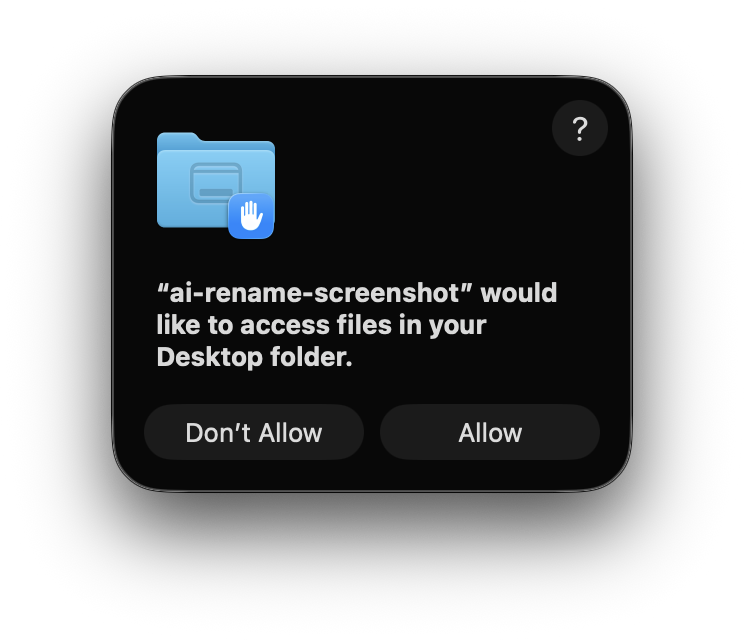 | 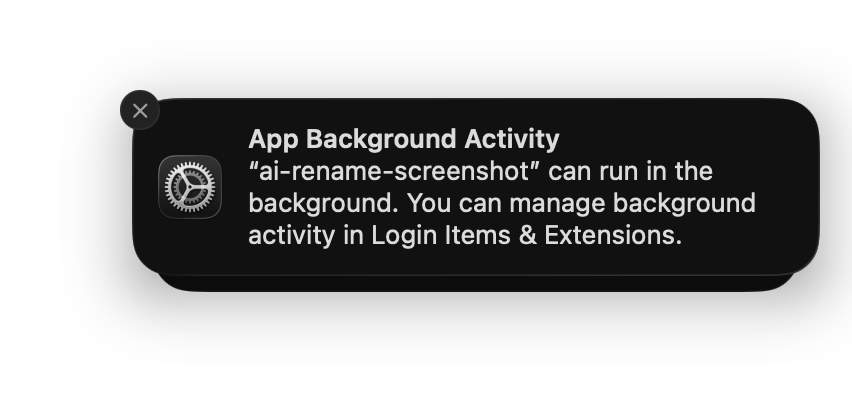 |
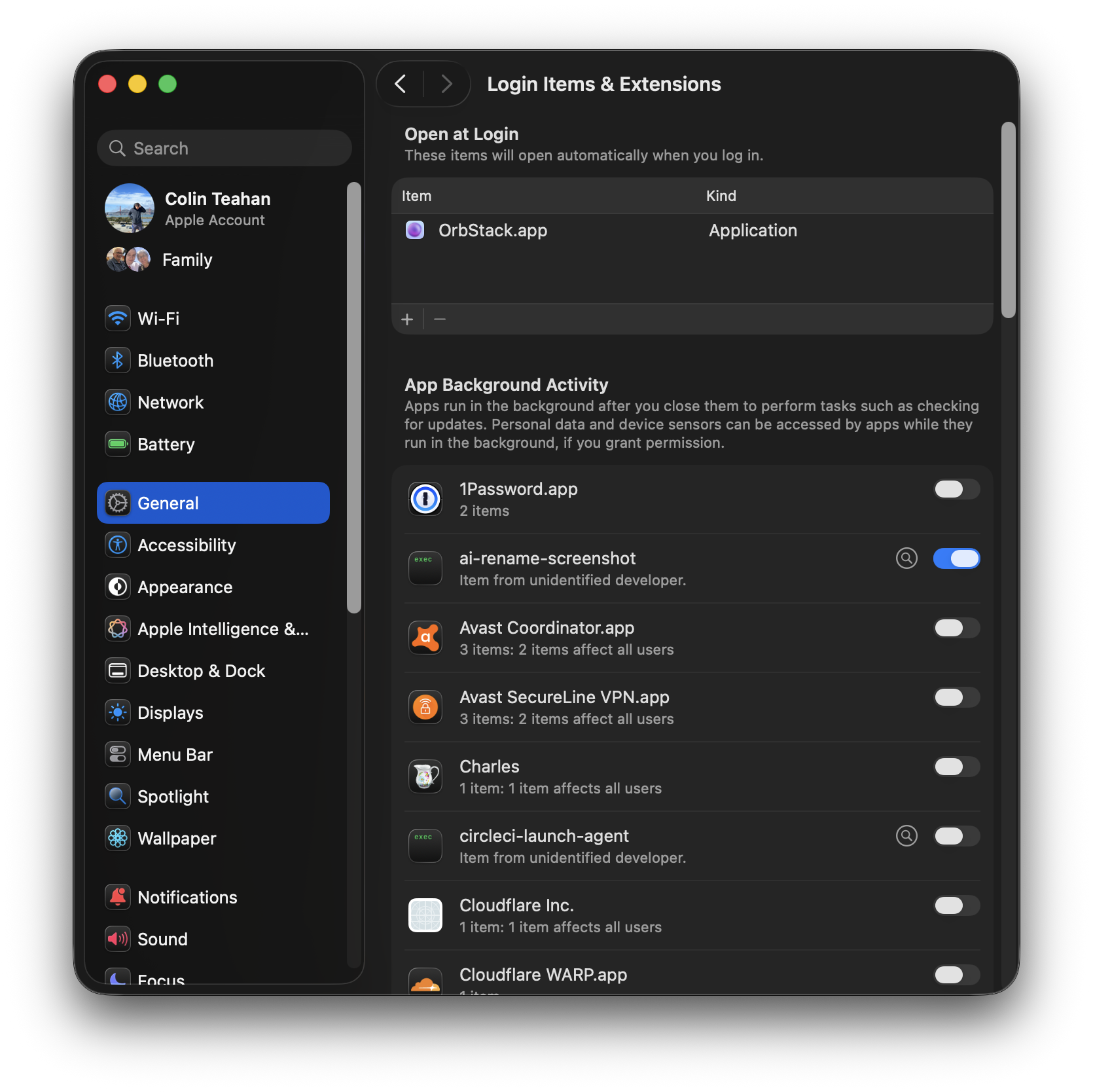
Go ahead and click “Allow”, you will be able to edit this later in System Settings ➜ Login Items & Extensions
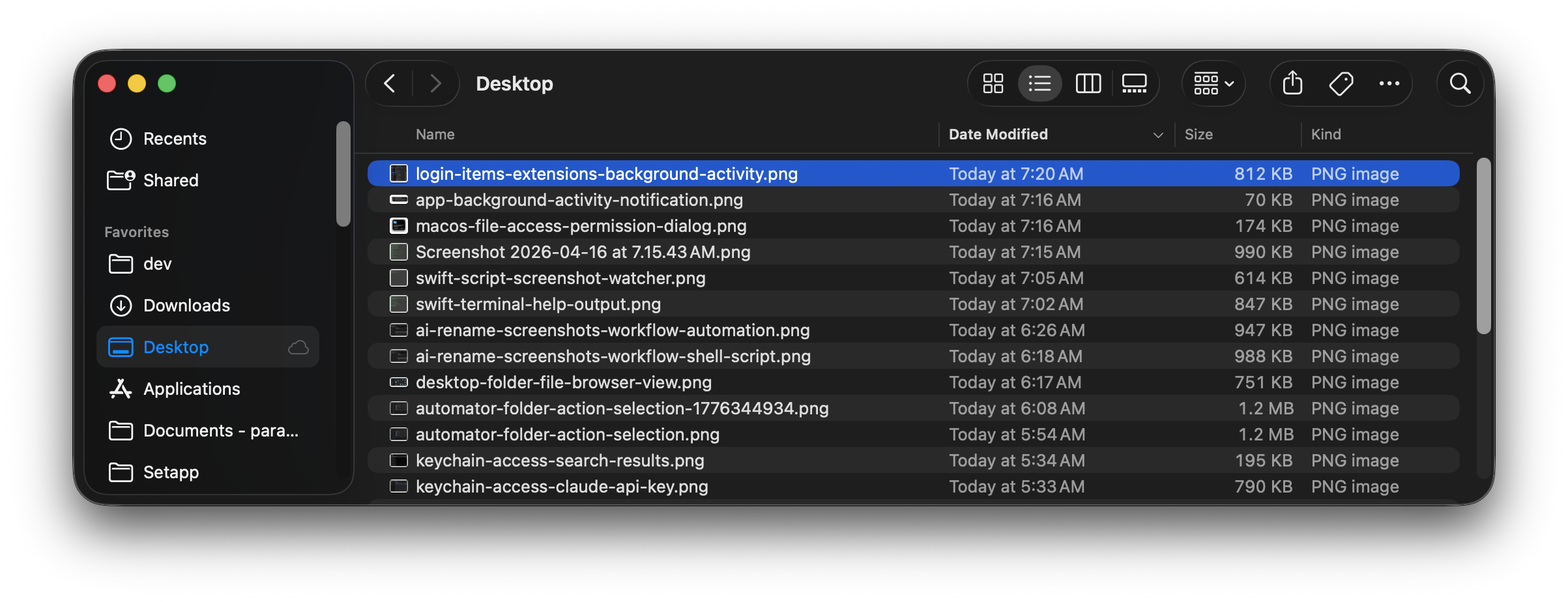
Now go ahead and take some screenshots and watch the clutter turn into organization!
Troubleshooting
Here are some useful resources, snippets and troubleshooting tips for this tutorial.
Checking Screenshots Save Location
Useful commands for checking MacOS Screenshot settings:
# check where screenshots are being saved:
defaults read com.apple.screencapture location

# change screenshot save location to Desktop:
defaults write com.apple.screencapture location ~/Desktop

# apply changes:
killall SystemUIServer
Automator Commands
Useful commands for programmatically interacting with MacOS Automator:
# list all folder actions:
ls ~/Library/Scripts/Folder\ Action\ Scripts/

# disable all folder actions:
defaults write com.apple.FolderActionsDispatcher UserFolderActionsEnabled -bool false

# re-enable:
defaults write com.apple.FolderActionsDispatcher UserFolderActionsEnabled -bool true

# delete workflow:
rm ~/Library/Workflows/Applications/Folder\ Actions/YOUR_WORKFLOW_NAME.workflow
Setting / Getting Keychain Secret
Useful commands for MacOS Keychain:
# get keychain secret
security find-generic-password -a "$USER" -s "CLAUDE_API_KEY" -w

# set keychain secret
security add-generic-password -a "$USER" -s "CLAUDE_API_KEY" -w "sk-ant-..."

# delete keychain secret
security delete-generic-password -a "$USER" -s "CLAUDE_API_KEY"
Useful launchd commands
Here are some useful Bash commands for managing this launchd process:
# stop program:
launchctl unload ~/Library/LaunchAgents/com.asleepace.ai-rename-screenshot.plist

# start process:
launchctl load ~/Library/LaunchAgents/com.asleepace.ai-rename-screenshot.plist

# observe process log:
tail -f /tmp/ai-rename-screenshot.log

# check process is running:
launchctl list | grep asleepace